The library contains all the files that are used to play music, station id's and commercials. AUDIO ITEMS MUST BE ADDED TO THE LIBRARY FOR THE CORRECT OPERATION OF DPS.
Group names starting with The as in 'The Beatles' will make searching more difficult and will keep large numbers of artists in same area of the Library.
Create a directory in Windows Explorer and move relevant music etc. files to this location.
DPS will also create, during setup, various other directories within the area where the main program exists i.e. C:\Program Files\DPSv3b One location in particular will be where . TON files are created and held. These files gather together information about the music and can be opened and viewed in Notepad. The Ton file is setup on adding cuts to Library and added to by Edit Player
Other points to remember with Library.
It saves itself but a forced save can be made by clicking the save icon or right clicking on Library area and selecting save. It is also available from the top menu bar under Library.
Once some cuts have been added some additional information is added above Artists and Title columns. Above Artists the number with Sectone i.e those that have a point where the next track will start automatically and above Title is the total number of Tracks available.
There is a Reload option to clear the current and to bring Library back from the saved file.
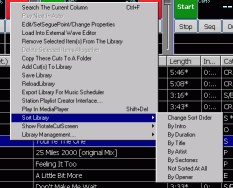
The Library can be ordered by fields available as shown below. Moving across and down and then clicking will invoke the change.
An alternative method is the click a column header, e.g. "Artist" ,to sort by ascending order. Clicking the same column again will result in a reversal of the sort order. You can do this for any visible column, as well as the right-click options detailed above.
If you want to resize any library columns, you must SAVE THE LIBRARY after any changes, or the default column widths will be restored when the screen refreshes or resizes. Just right click a library item, and "Save Library"