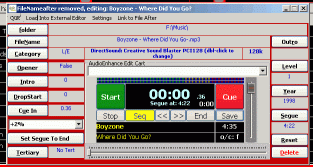
Setting of intro, level, cue in, opener, seque point year of release and refinement to artist/track details takes place here. This is also where deleting/renaming of tracks takes place.
To load a track into Edit Player first locate the track in Library and either double click with the mouse or click once with mouse and hit enter. This will load the current record for editing.
Let's look at the options in the top bar when track is loaded.
Quit . Does exactly what it says.
Load Into External Editor . If you have Audioenhance tag Editor then track will get loaded into there.
Settings. Brings up a number of further options some of which are turned on as default. If these are not required then click against line and it will be removed.
Link To File After Clicking on this option brings up the whole of the current library to select a track that will always follow the one being edited.
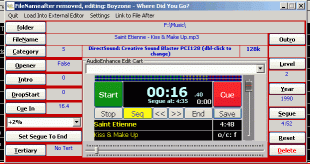
Remove UnderScores (Replace with spaces) .
You may find that some music tracks that have come from elsewhere will have _ linking the various parts of the artists or track or both. This option will automatically remove these and replace with spaces. This gives a more pleasing look to the entry when seen in the Library. It also helps to ensure that if the same track gets input again the duplication of a piece of music is avoided.
Gives consistent naming between what is in the Library and what the actual music file is called. We come onto this further down but basically the details in the yellow text area will become the file name of the music and .ton file when saved in Edit Player.
This option is off by default but can save some time if you are starting out. AudioEnhance have a very extensive Library of track details that may save someone just starting out from having to give all the details for each track. If turned on then click on the drop down above the red CUE button. This will then give various matches from DPS database. If the one you want is there then click on it.
Again this option is off by default and again relies on the information that AudioEnhance have gathered. It provides other information that maybe of use to you as it has been to us.
* If these options are turned on it has to be remembered that on opening the first cut in Edit Player on each loading of DPS the necessary files are loaded into memory. This can take some time depending on what operating system you are using. Once loaded in that session they will provide useful information to save you time in long term.
This option allows Edit Player to automatically step over any piece at the start of a track. The amount, in seconds, is shown in the Cue In box. It may well be that to enhance the start of a piece any quiet bits will be cut out as well and we will come to that under Cue option further down.
DPS has VU meters that can show the sound level of the track being played. This facility is added to Edit Player but can be turned off. The VU meter is located above the time display.
This section is now complete and we can move onto actually setting points in Edit Player. It is assumed that all the options above are turned on.
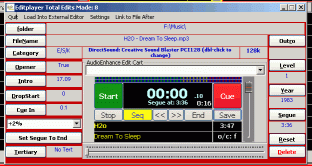
Working down the left hand side we see that first comes:-
Folder This is the location on hard drive where this particular file is stored and should be the one you created and moved cuts into.
File Name Shows the exact format that the file is stored under in the folder above.
Category Before you start you need to consider all the options you are going to require depending on the type of music your station is playing. The example shown is in Category CR for Classic Rock but if it was brand new and in charts then A might be where it appears. See also the section on DPS Categories A track can appear in more than one Category but each one must be seperated by a / so we could have CR/A/E/R. The box will accept upper or lower case entries but it will automatically change the entry to UPPER CASE.
Opener By default this will be False but if you select the details from the DPS database of tracks it could become set to True if AudioEnhance has picked it before. An opener is a track that has a good strong start and may include a fair amount of instrumental before vocals start. It may well suit being the 'Opener' for a new hour.Tracks that have been set to Opener are shown in Library with a * after the Category details.
Intro Follow Link To Intro Tone Description
Drop Start Follow link to DropStart Tone Description
Cue In Follow Link to Cuein Description but also see below in button explanation
0% This shows the rate that has been set to playback the cut. Default rate is set in Configure, Show Configuration screen. The example screen shot above show +2%. The timings shown against the cut will be based on the speed replay being 2% quicker than that played on a domestic CD player. All new cuts will be based on default but can be over-ridden by changing in this box.
Tertiary This is a tone to allow other items to interact with DPS i.e. shut a sound card.
Set Segue To End This will put the marker to fire off the next cut to the very end of the track being edited
Down right hand side
Outro This marks the point at where a Tracked Cut starts
Level Shows in the Library and forms part of the total way of categorising cuts. Gives a greater flexibility when using DPS in conjunction with a Music Scheduler. An example would be to diffentiate between a track that can be played at any time of the day to one that would only come up say after midnight. Those being in a lower Level of say CR (Classic Rock) 2 being of a different tempo
Year The year the version the cut was first released.
Segue The time point at which the next cut will be fired off. This is worked out by DPS in conjunction with the % rate set for playback.
Reset This will remove all the data in the fields, that have been completed by adding the cut. Useful if mistake made in adding item to library so data can be added again.
Delete Does exactly what it says but will also remove the mp3 and ton file. It must be borne in mind that this option does not send the files to the Recycle Bin and they are gone.
That completes the descriptions for the fields around the central cart area
Edit Player Button Uses
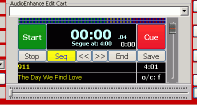
Start Sets the cut playing from the Sound card selected. You will notice that the pointer in the area under the track title moves across the screen. This shows how much has played/ is still to play.
Stop Stops cut playing
End Sends the cut playing to approx 20 seconds before the end. This enables easier setting of the Seg point.
Seg Box is shown high lighted in yellow until mouse is over it when it becomes green. Click at the point you want DPS to start the next cut.
Cue See also Cuein Description DPS will automatically set a cue in point where music actually starts in the cut. if you wish to start playing further in then this red button used in conjunction with the << and/or >> allows selection down to fraction of a second. First start the cut and at the point near to where the cue in is to go click the << this will freeze the cut where it is. Further clicks on either this button or the >> will move the repeated sound back or forward to arrive at the exact point you want to have the start. When happy that it is correct click on the red Cue button and the time in will change in the Cue in on left. DPS will not allow any further alterations to be made to this cut until it has been saved and entered back into edit Player. The setting of Cue In needs to be done either as a seperate action or after all the other fields are completed.
Artist The Artist name will be picked up by DPS from information in the mp3 file name. This can be altered if you wish by over typing. Remember that if you have selected Allow Auto Suggest for Artist & Title altering the details will invoke DPS trying to fill in details for you.
Title The track Title will behave the same way as Artist field with settings turned on for auto suggest. Please also remember that Windows has certain characters that are not permitted in file names. These are shown between the brackets. ( \ / : * ? " < > | ) Of course ? is quite common at the end of a track title. If you want to keep the library in step with the file names then these characters must not be used. These characters will be replaced by Windows with a -. If you forget to keep these consistent you could end up with duplicates in DPS.