
By default, all dps carts will play to the default directsound device (the one set by windows).
If you have more than one sound card and wish to choose a destination for the audio, this is entirely possible in DPS.
Using the menu at the top of the screen, select Change Settings - thus:
You will now see this pop-up screen:
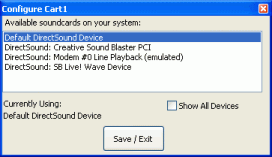
Simply select the name of the destination device by highlighting it, and press Save/Exit.
If your output device is not shown (unlikely, but can happen with USB sound devices) then
check the show all devices. If it is not shown, it is not supported.